System Software
ITEC 101: Introduction to Information Technology

Mr. Seng Theara
Learning Outcome
-
Distinguish system software from application software.
-
Explain how an operating system manages hardware, applications, files, and memory.
-
Demonstrate multitasking and monitor computer resources.
-
Compare operating systems and graphical versus command-line interfaces.
-
Use built-in utility programs for file management, compression, cleanup, backup, and security.
-
Recommend appropriate operating systems and utility tools for real-world situations
System Software
Imagine you buy a brand-new laptop. It has an Intel Core i7, 16 GB RAM, and a 512 GB SSD. Everything is working perfectly. But there is one problem: it has no Windows, Linux, or any other operating system installed. What happens when you turn it on?
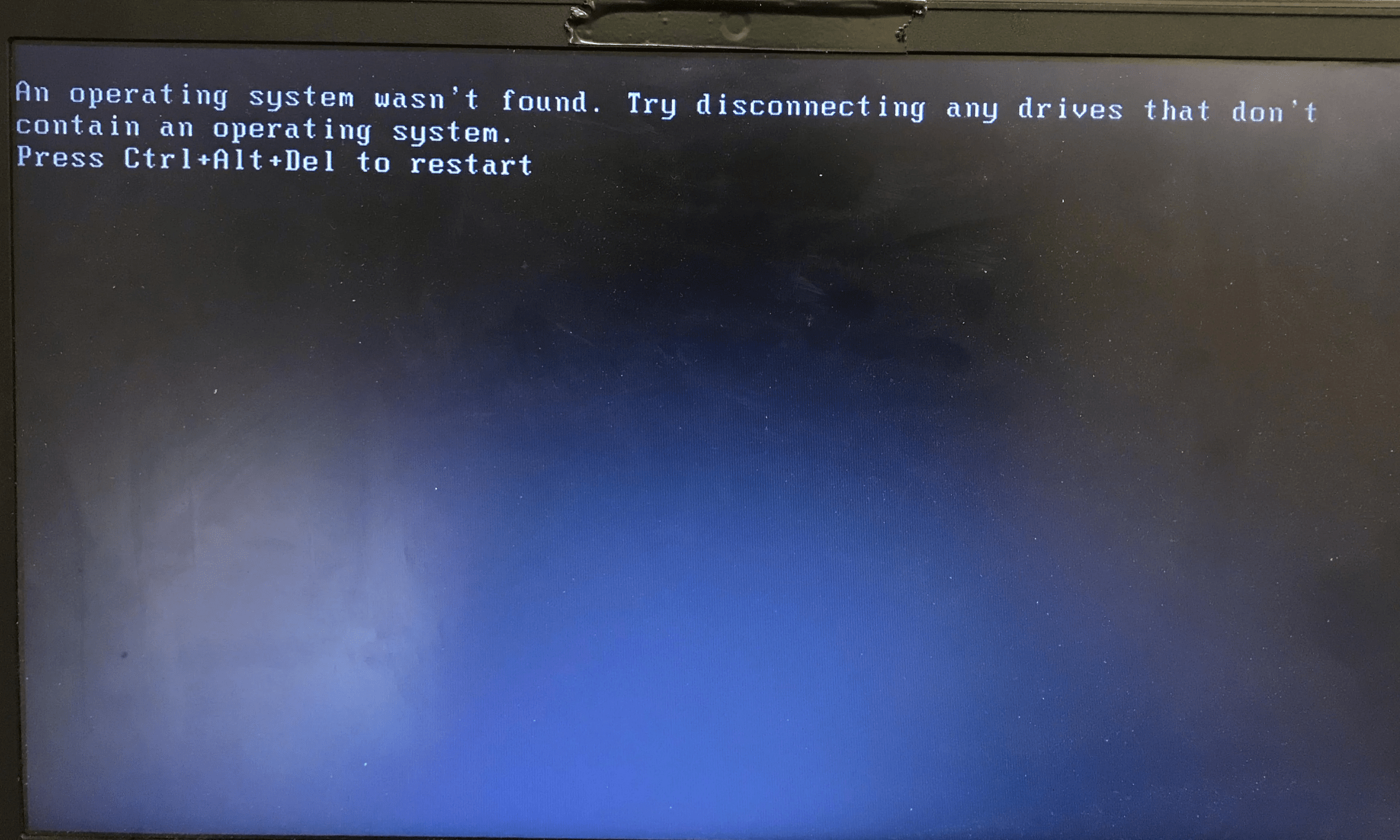
Can the computer still power on without an operating system?
1. Yes, firmware can still start
2. No, it cannot receive electricity
3. Only if the SSD is removed
Can the computer still power on without an operating system?
1. Yes, firmware can still start
2. No, it cannot receive electricity
3. Only if the SSD is removed

Can the computer still power on without an operating system?
1. Yes, firmware can still start
2. No, it cannot receive electricity
3. Only if the SSD is removed
Can you normally browse files on the SSD without an operating system?
1. Yes, just double-click the SSD
2. No, normal file browsing requires software such as an OS
3. All files disappear
Can the computer still power on without an operating system?
1. Yes, firmware can still start
2. No, it cannot receive electricity
3. Only if the SSD is removed
Can you normally browse files on the SSD without an operating system?
1. Yes, just double-click the SSD
2. No, normal file browsing requires software such as an OS
3. All files disappear
What can and cannot work?
Function Without an installed OS
|
Power on the computer |
|
|
Enter BIOS/UEFI settings |
|
|
Detect CPU, RAM, and SSD |
|
|
Open Microsoft Word normally |
|
|
Run Chrome normally |
|
|
Browse files using File Explorer |
|
|
Install an operating system |
|
What can and cannot work?
Function Without an installed OS
|
Power on the computer |
Yes |
|
Enter BIOS/UEFI settings |
yes |
|
Detect CPU, RAM, and SSD |
yes, through firmware |
|
Open Microsoft Word normally |
No |
|
Run Chrome normally |
No |
|
Browse files using File Explorer |
No |
|
Install an operating system |
Yes, using bootable installation media |
BIOS/UEFI Setup
BIOS/UEFI Setup
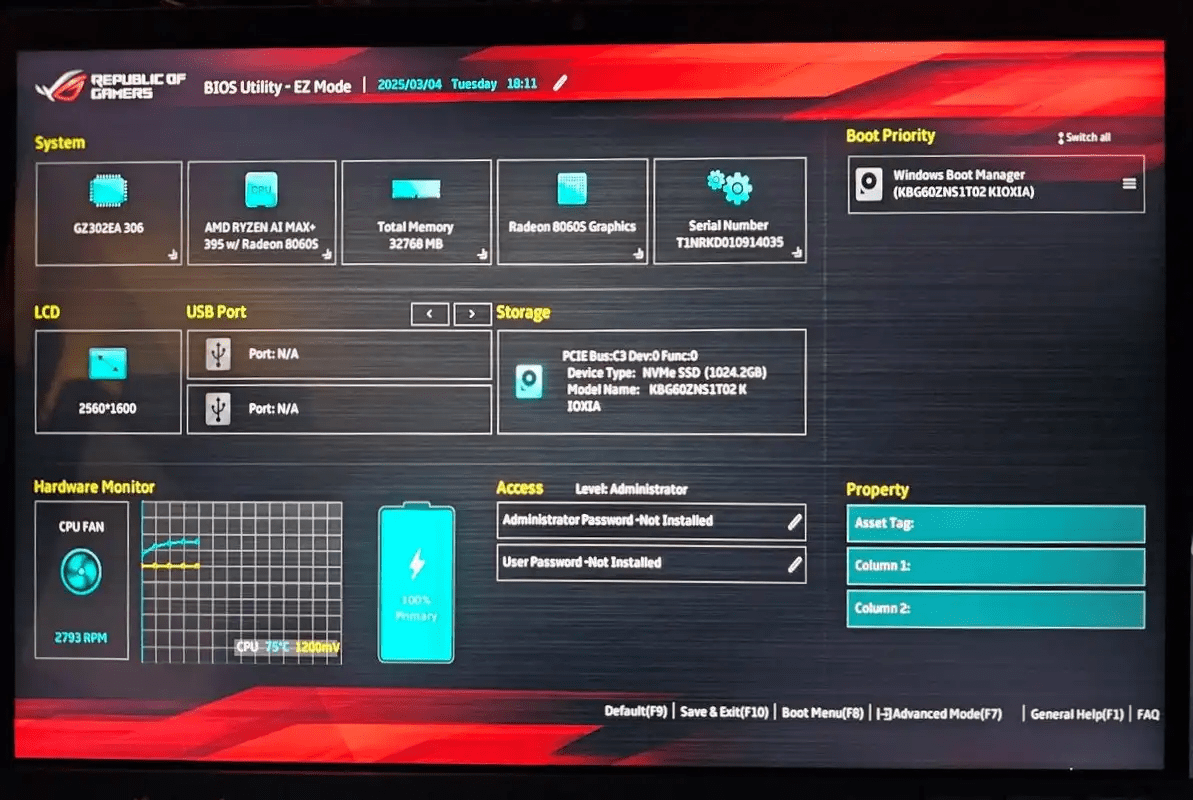
BIOS/UEFI Setup
Opens the firmware settings, where you can inspect or configure hardware-related options such as:
-
CPU, RAM, and storage information
-
Boot order
-
Secure Boot
-
System date and time
-
Virtualization settings
BIOS/UEFI Setup
Opens the firmware settings, where you can inspect or configure hardware-related options such as:
-
CPU, RAM, and storage information
-
Boot order
-
Secure Boot
-
System date and time
-
Virtualization settings
Often F2, F10, Delete, or Esc, depending on the laptop
Boot Menu
Boot Menu
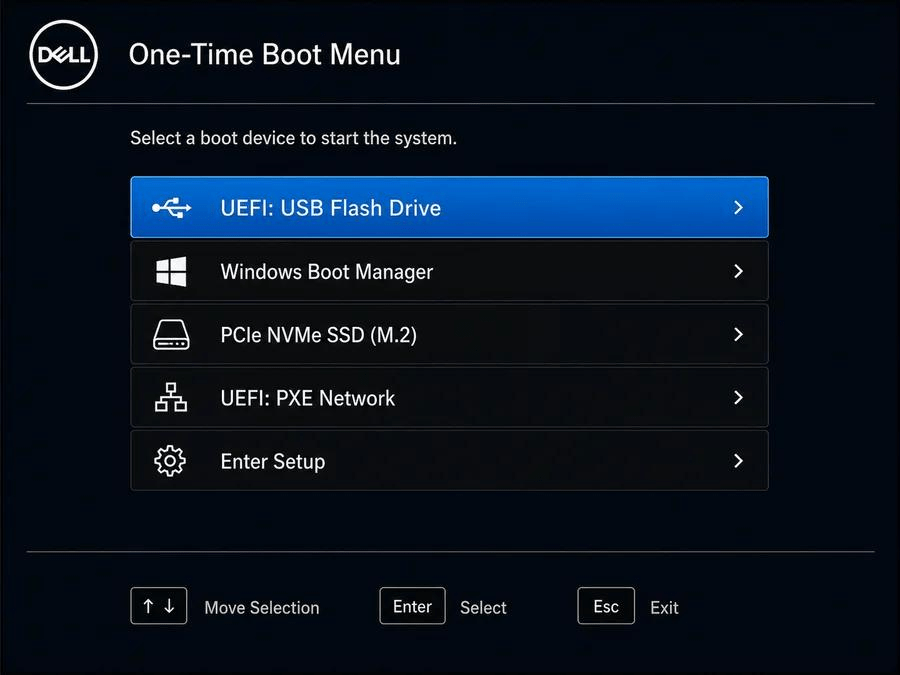
Boot Menu
Opens a menu to select which device to start from, such as:
-
Internal SSD / Windows Boot Manager
-
Bootable USB flash drive
Boot Menu
Opens a menu to select which device to start from, such as:
-
Internal SSD / Windows Boot Manager
-
Bootable USB flash drive
For example, when installing Windows from a USB drive, you can select that USB drive from the Boot Menu.
Boot Menu
Opens a menu to select which device to start from, such as:
-
Internal SSD / Windows Boot Manager
-
Bootable USB flash drive
For example, when installing Windows from a USB drive, you can select that USB drive from the Boot Menu.
Often F12, F9, F11, or Esc, depending on the laptop.
When you press the power button, how does your computer know where Windows is and how to start it?
When you press the power button, how does your computer know where Windows is and how to start it?

Computer starts powering on
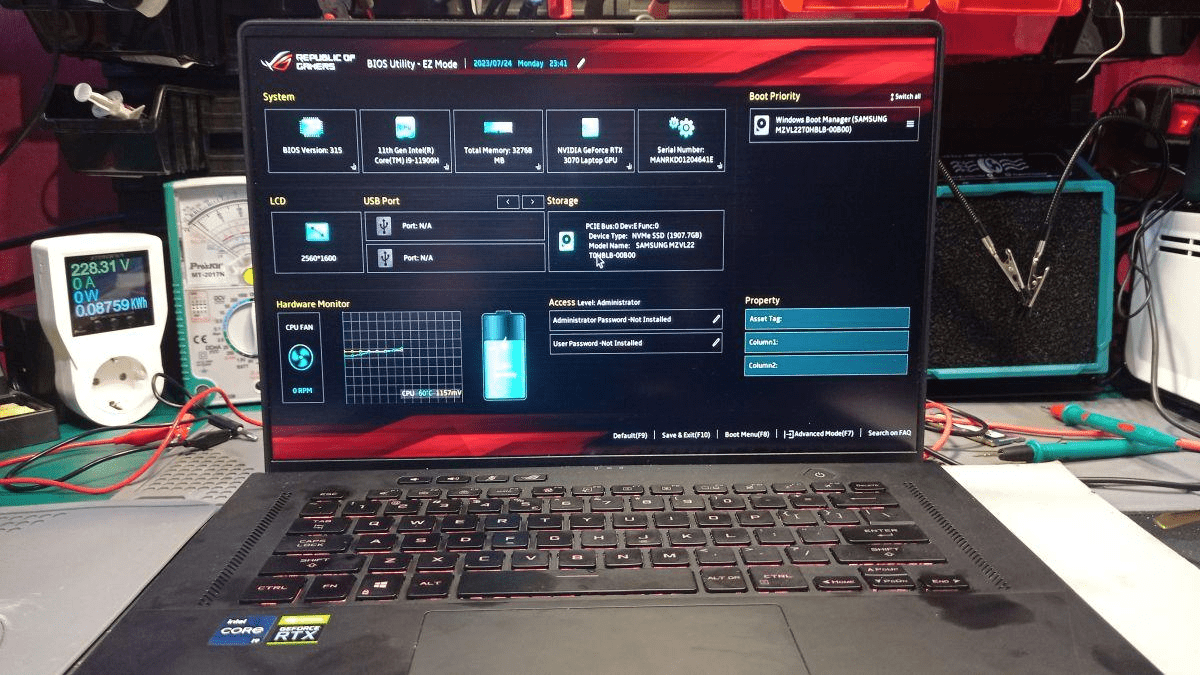
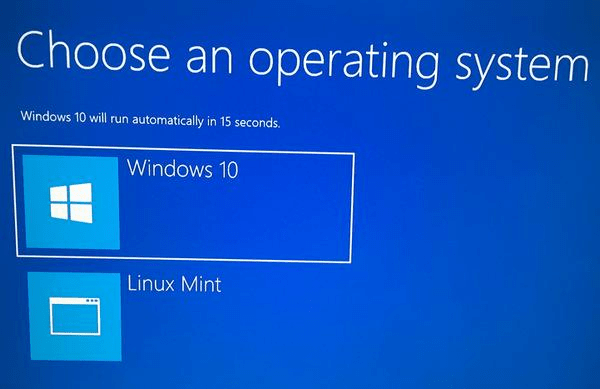
Power Button
BIOS/UEFI
Bootloader
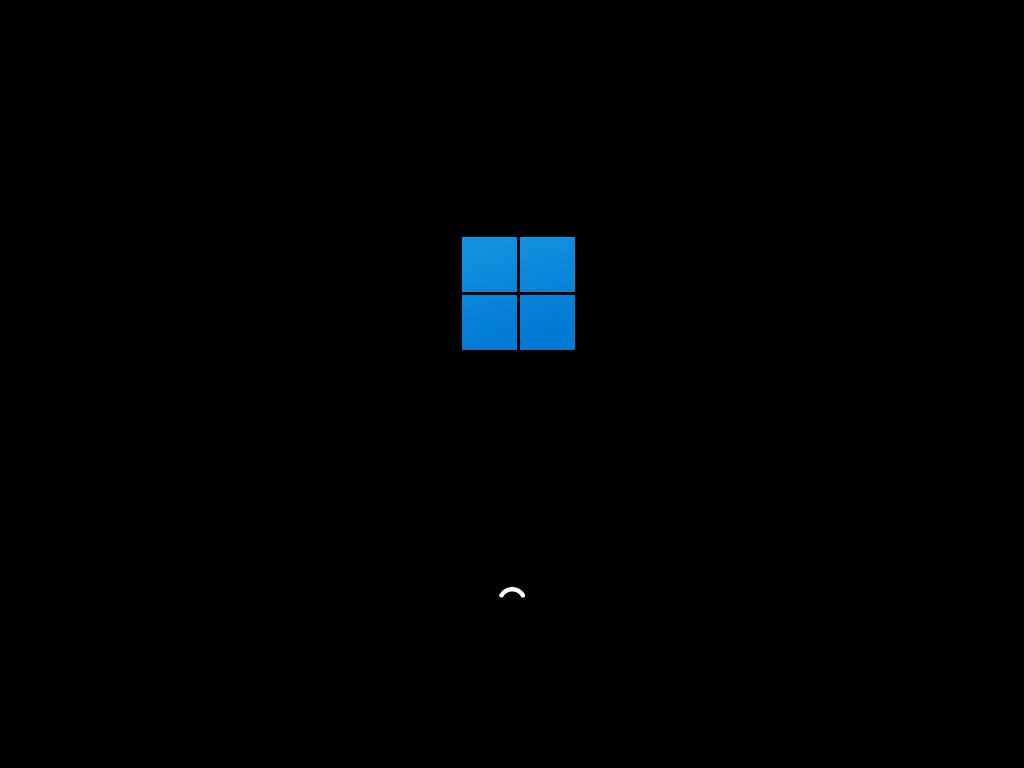
Initializes and checks hardware, finds a boot device
Starts loading Windows from the SSD
OS Kernel
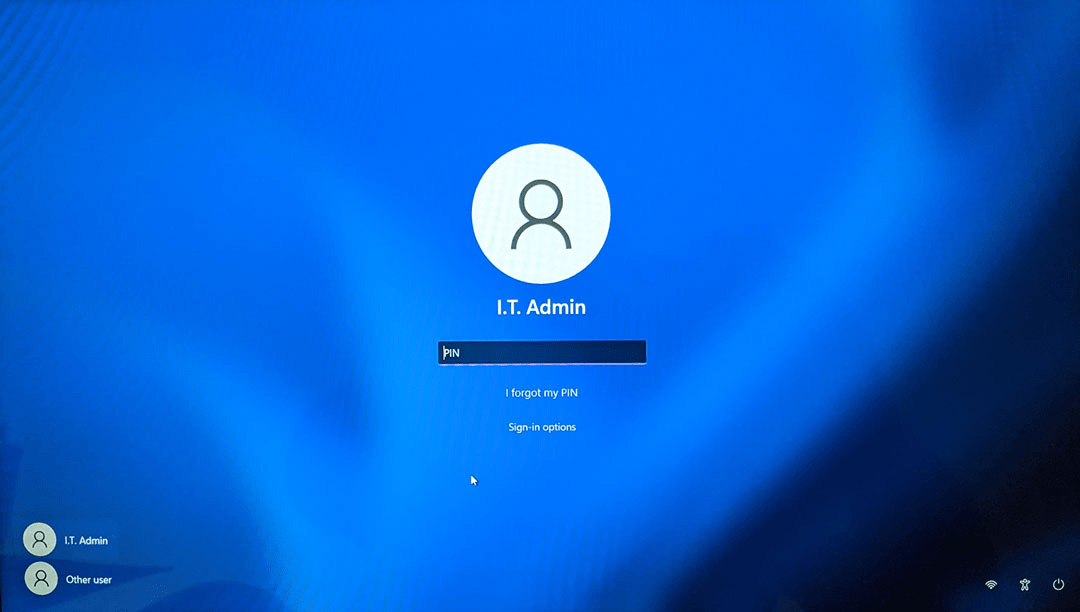
Login Screen
Initializes essential system services and manages resources
Computer is ready for you to sign in and use
OS Kernel
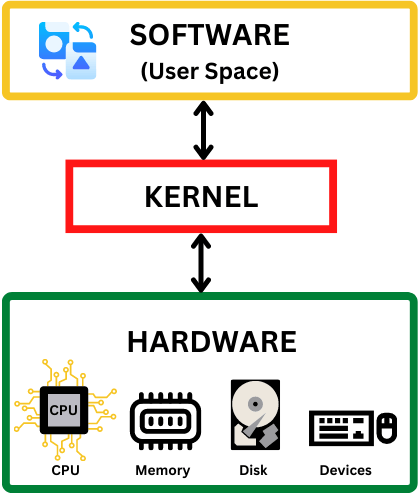
The operating system (OS) kernel is the core software component that acts as the primary interface between a computer's physical hardware and its running applications.
Investigate Using Task Manager
Investigate Using Task Manager
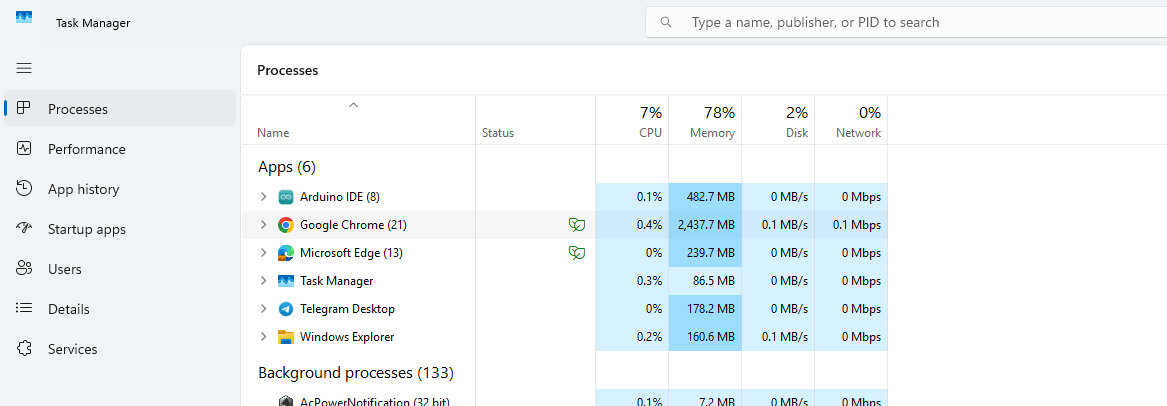
A computer can keep multiple programs running or ready to run. The operating system manages these programs and schedules their work on the CPU.
Investigate Using Task Manager
A computer can keep multiple programs running or ready to run. The operating system manages these programs and schedules their work on the CPU.
Column Meaning
|
CPU |
How much CPU processing a program is using |
|
|
Memory |
How much RAM a program occupies |
|
|
Disk |
How actively a program reads or writes storage |
|
|
Network |
How much data a program transfers over the network |
Multitasking, Multiprocessing, Multithreading
Multitasking
The ability of an operating system to have more than one program (task) open at one time
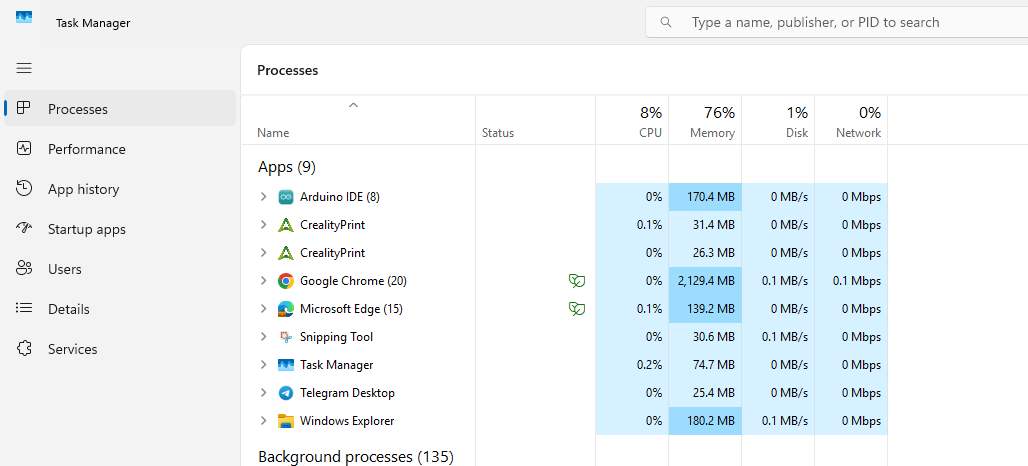
The ability or attempt to perform, operate, or handle more than one task, job, or program at the exact same time
Multiprocessing
Multiple processors (or multiple cores) are used in one computer system to perform work more efficiently

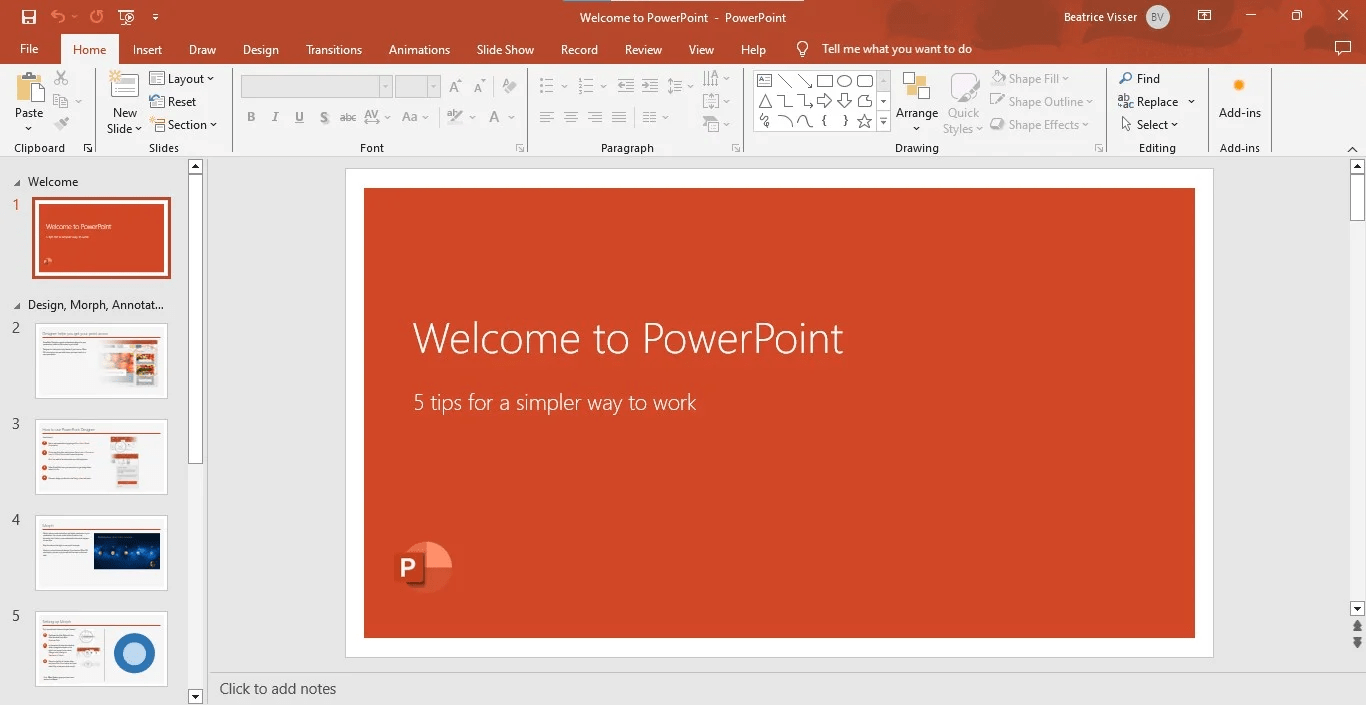
Chrome Process
Powerpoint Process
CPU Core 1
CPU Core 2
Multiprocessing
Multiple processors (or multiple cores) are used in one computer system to perform work more efficiently
Chrome Process
Powerpoint Process
CPU Core 1
CPU Core 2
Imagine several separate kitchens preparing different orders, each with its own equipment and workspace.
Multithreading
Multithreading means a single process can have multiple threads of execution. These threads share the process's memory and resources.

Thread 1
Game logic
Thread 2
Physics calculations
Thread 3
Audio processing
Thread 4
Background loading
Multithreading
Multithreading means a single process can have multiple threads of execution. These threads share the process's memory and resources.
Imagine a team working on different parts of the same meal: one prepares ingredients, another cooks, and another plates the food.
Thread 1
Game logic
Thread 2
Physics calculations
Thread 3
Audio processing
Thread 4
Background loading
GUI vs. CLI
GUI-Graphical User Interface
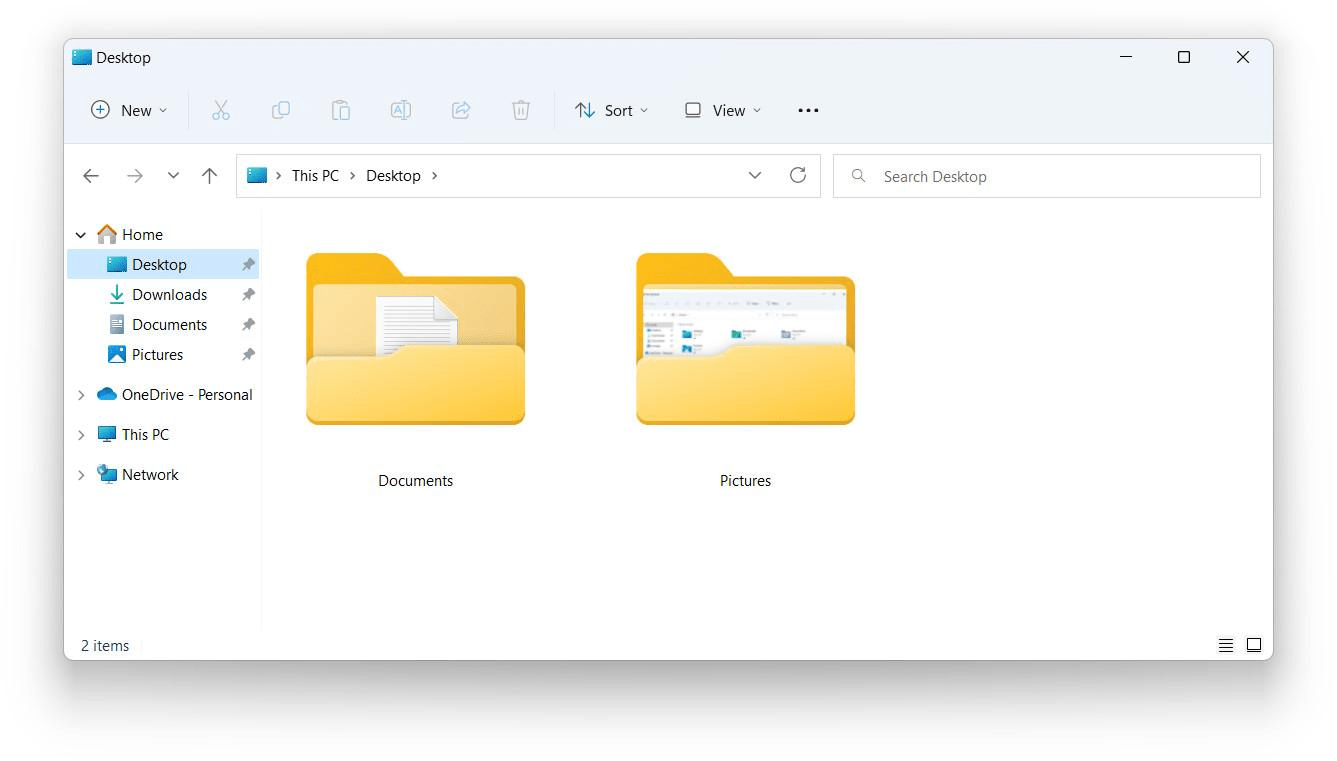
GUI-Graphical User Interface
-
Uses windows, icons, and menus
-
Controlled using mouse and keyboard
CLI- Command-Line Interface
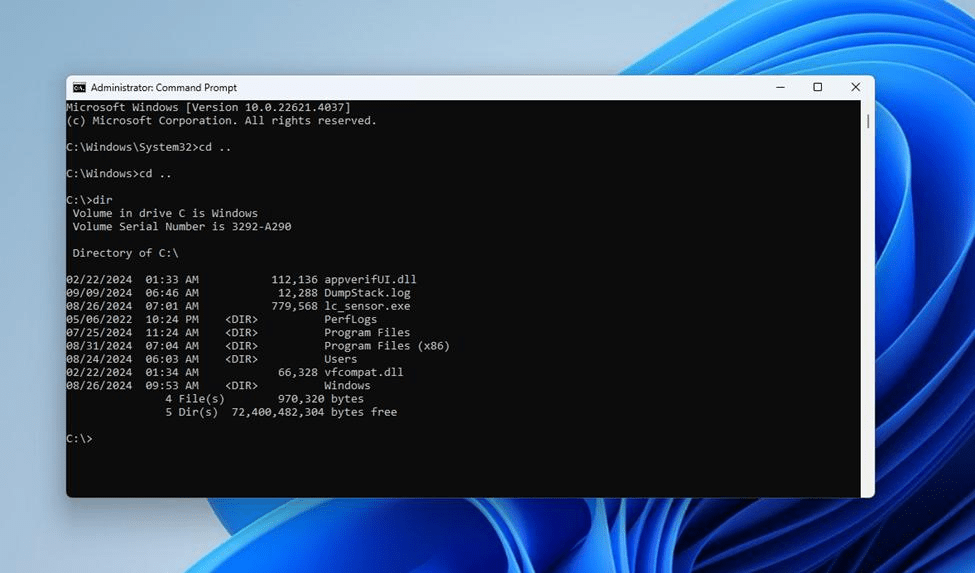
CLI- Command-Line Interface
-
Uses text commands
-
Controlled mainly using keyboard
CLI Command
Command What does it do?
|
|
Change folder |
|
|
Go to the parent folder |
|
|
Create a folder |
|
|
Display files and folders |
|
|
Display folder structure and files |
|
|
Display text or write to a file |
|
|
Copy a file |
|
|
|
|
Rename a file or folder |
|
|
Move a file |
|
|
Read a text file |
|
|
Delete a file |
|
|
Delete an empty folder |
|
|
Clear the terminal screen |
|
|
List available CMD commands |
Command What does it do?
Practice
Part A - Create your folders
- Go to your Desktop using CMD.
- Create a folder named University.
- Inside University, create two folders: ITEC101 and Python.
- Inside ITEC101, create two folders: Assignments and Projects.
- Display the complete folder structure.
Part B - Create and edit files
- Create a file named student.txt inside ITEC101 containing your name.
- Display the contents of student.txt in CMD.
- Add the text "Welcome to ITEC101" without removing the existing text.
- Open student.txt using Notepad.
- Create a file named homework.txt inside Assignments.
Part C - Manage your files
- Copy student.txt into Projects.
- Rename the copied file to profile.txt.
- Move homework.txt from Assignments to Projects.
- Display all files inside Projects.
- Delete homework.txt from Projects.
- Display the final folder structure, including files.
Discussion