Serial Communication
ICT 361: Introduction to Robotics

Mr. Seng Theara
4 Buttons
Joystick
PC->ESP32
PC to ESP32 Communication
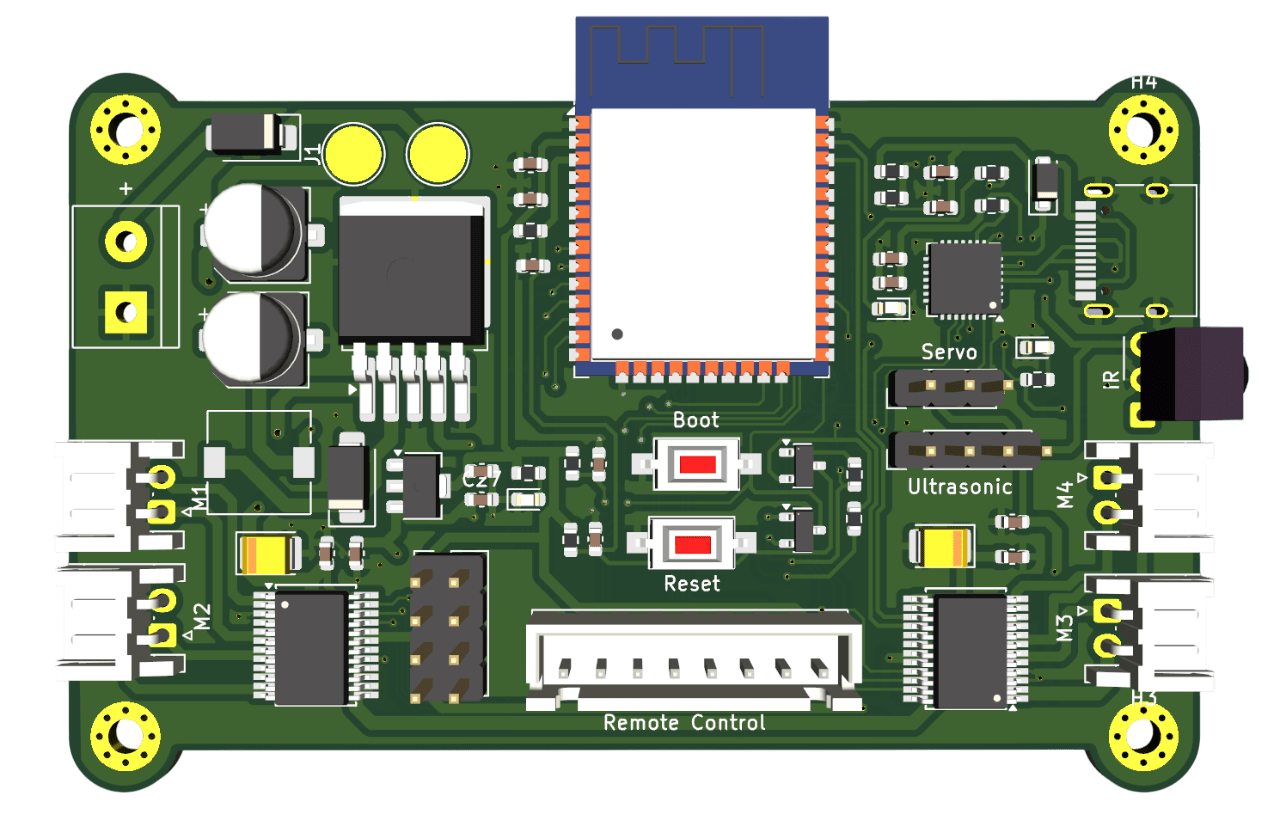

ESP32 Coding
void setup() {
  Serial.begin(115200);
  Serial.println("Type a message and press Send:");
}

void loop() {
  // Check whether data has arrived from the PC
  if (Serial.available() > 0) {

    String message = Serial.readStringUntil('\n');

    message.trim();

    // Send the received message back to the PC
    Serial.print("ESP32 received: ");
    Serial.println(message);
  }
}
Upload this code to esp32 and then open serial monitor on the arduino IDE with baudrate 115200
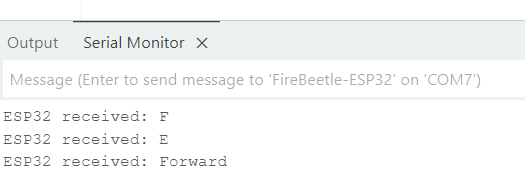
When we enter the message here and press enter, the ESP32 will receive the command
Practice
Write a program that allows you to control the robot by sending commands from the PC’s Serial Monitor to the ESP32.
The ESP32 should receive and respond to these commands:
- forward —> Move forward.
- backward —> Move backward.
- left —> Turn left.
- right — Turn right.
- stop —> Stop moving.
Test each command to confirm that the robot responds correctly.
ESP32 Coding
void setup() {
  Serial.begin(115200);

  Serial.println("Enter a command such as FORWARD,50");
}

void loop() {
  if (Serial.available() > 0) {
    String message = Serial.readStringUntil('\n');
    message.trim();

    // Find the comma separating direction and speed
    int commaPosition = message.indexOf(',');

    if (commaPosition == -1) {
      Serial.println("Error: use FORWARD,50");
      return;
    }

    // Extract the two parts
    String direction = message.substring(0, commaPosition);
    String speedText = message.substring(commaPosition + 1);

    direction.trim();
    direction.toUpperCase();
    speedText.trim();


    // Check that speed contains 1–3 digits
    if (speedText.length() == 0 || speedText.length() > 2) {
      Serial.println("Error: enter a speed from 0 to 100");
      return;
    }

    for (unsigned int i = 0; i < speedText.length(); i++) {
      if (speedText[i] < '0' || speedText[i] > '9') {
        Serial.println("Error: speed must be a whole number");
        return;
      }
    }

    // Convert the text into an integer
    int speed = speedText.toInt();

    Serial.print("Direction: ");
    Serial.println(direction);

    Serial.print("Speed: ");
    Serial.println(speed);


  }
}
From this code, we want to receive the command from the PC in both directions and speeds.
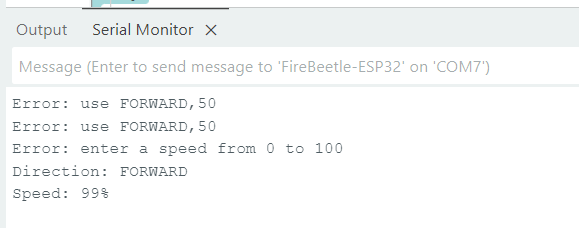
From the serial monitor, you have to Enter a command such as FORWARD,50. If you don't do this, the esp32 will not receive the command
Practice
Modify your previous program to control both the robot’s direction and speed. Send commands in the format direction,speed, such as forward,50 or backward,30, where speed ranges from 0 to 100. Use stop,0 to stop the robot.
Python Coding
import serial
import time

esp32 = serial.Serial("COM7", 115200)
time.sleep(2)  # Allow ESP32 to restart

try:
    esp32.write(b"FORWARD,50\n")
    time.sleep(3)

    esp32.write(b"BACKWARD,50\n")
    time.sleep(2)

finally:
    esp32.write(b"STOP,0\n")
    esp32.flush()
    esp32.close()
Go to visual code, and write a Python file to run this script. Change the COM port based on your COM port connected to esp32
Finger Control Robot Movement
From this link->
- Detect 1-> robot move forward
- Detect 2-> robot move backward
- Detect 3-> Turn Left
- Detect 4-> Turn Right
Raspberry pi to ESP32 Communication
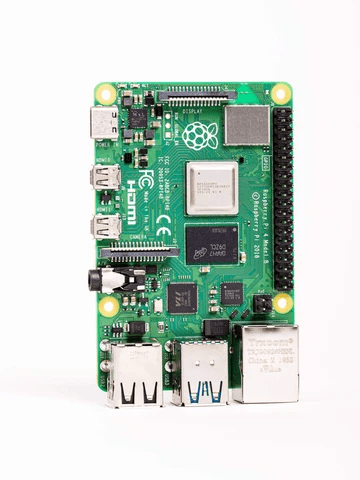
Raspberry Pi Remote Setup
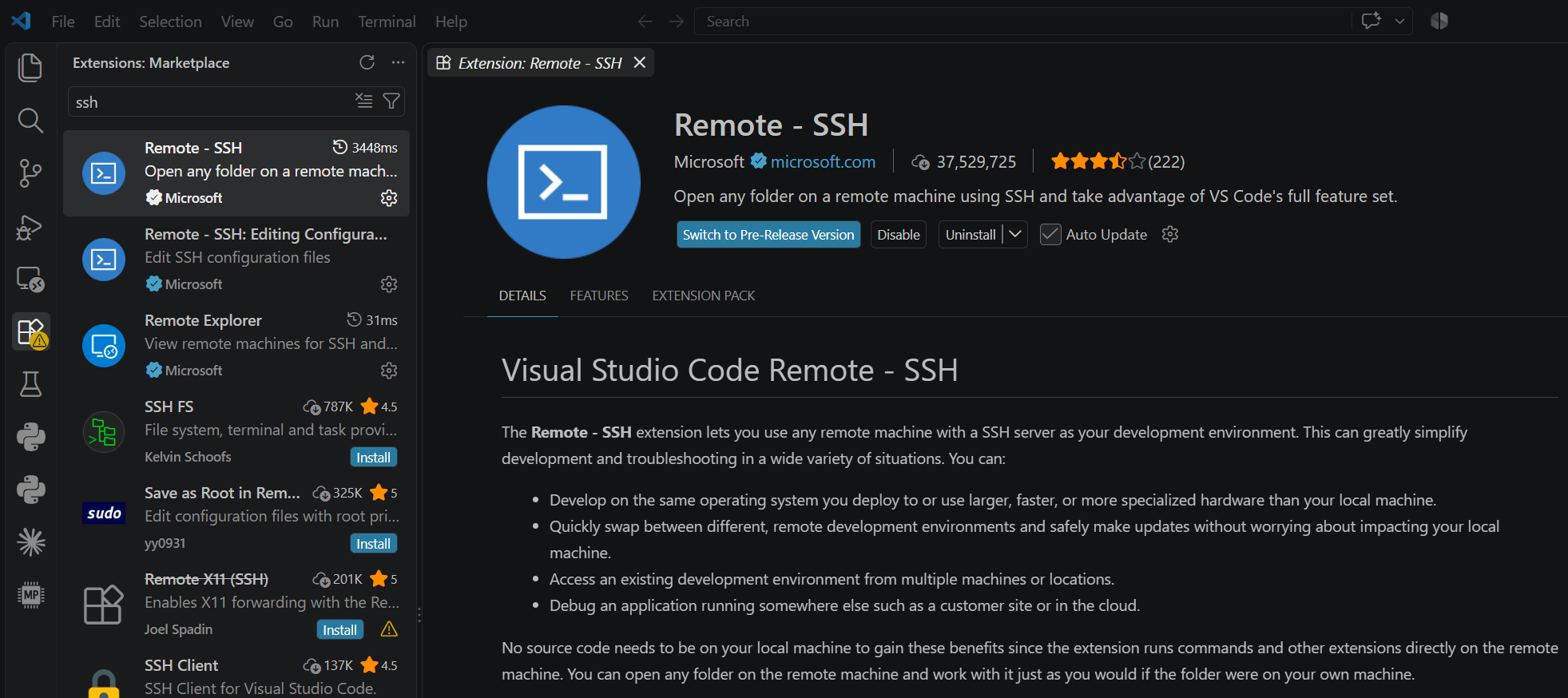
Go to Extensions in Visual Studio and install the Remote-SSH
Raspberry Pi Remote Setup
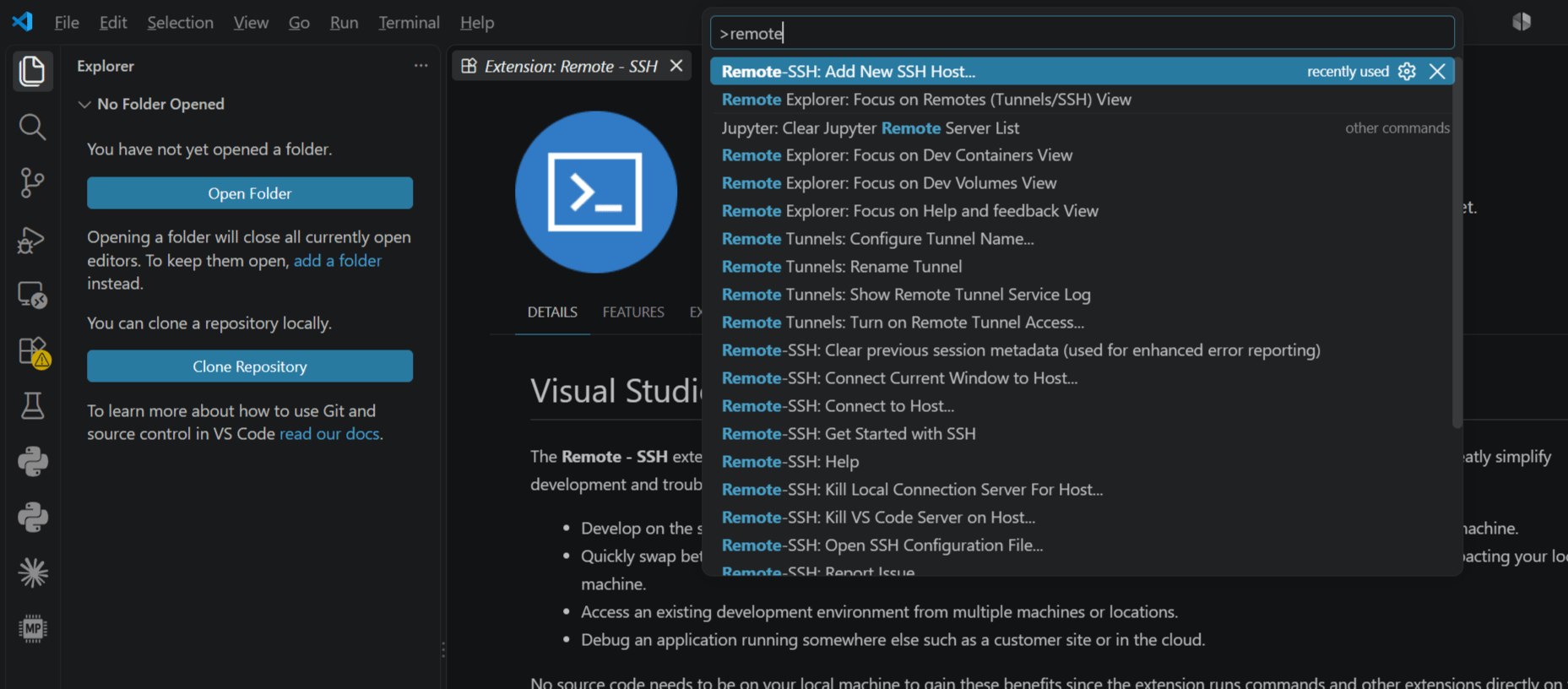
Type CTRL+Shift+P and then search for Remote-SSH: Add New SSH Host
Raspberry Pi Remote Setup
Type ssh aupp@raspberry-pi-IP, then press Enter. The password should be aupp.

Check your Raspberry Pi IP; it should be 10.30.0.X.
Raspberry Pi Remote Setup
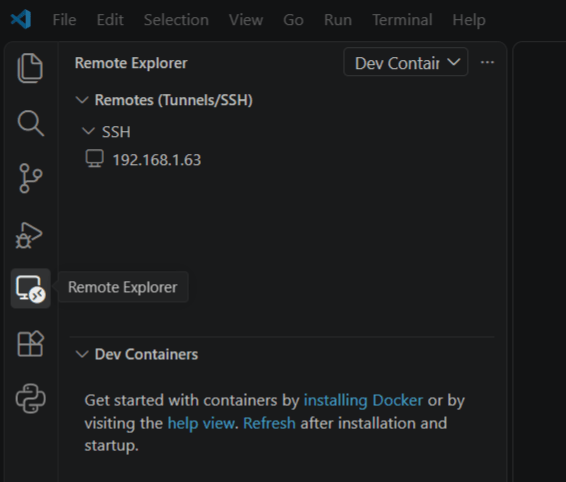
Go to Remote Explorer and click the arrow to ssh through this IP of your raspberry PI
Raspberry Pi Remote Setup
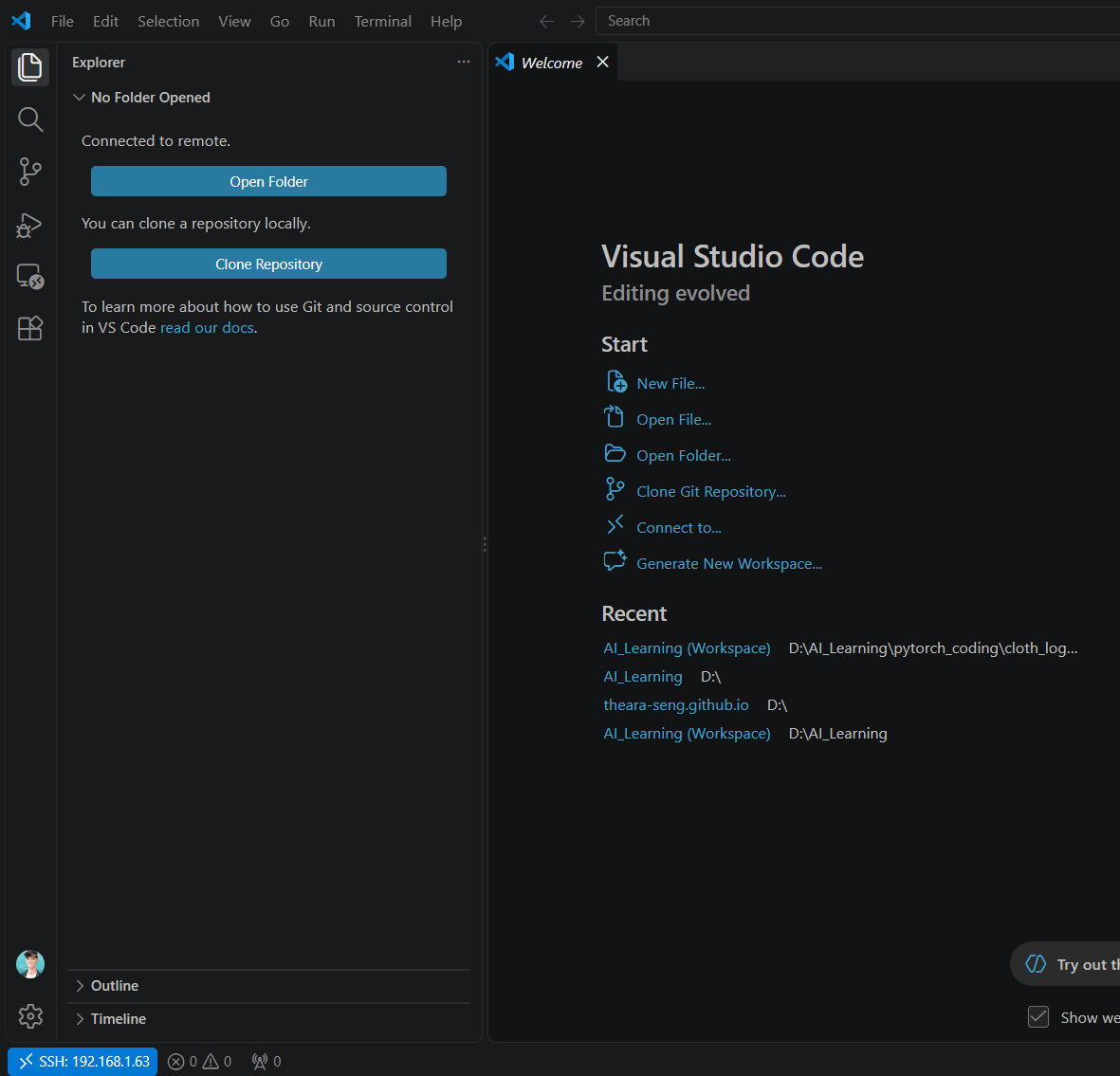
when it successful connected, you will see this. Then click on the Open Folder
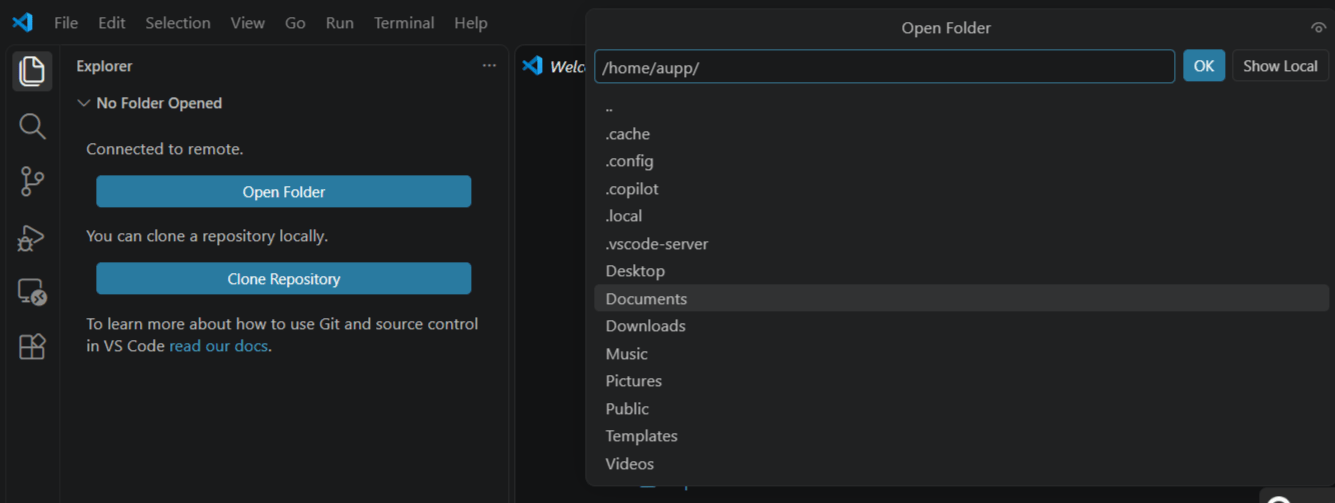
Using Documents Folder to store your code and files
Raspberry Pi Remote Setup
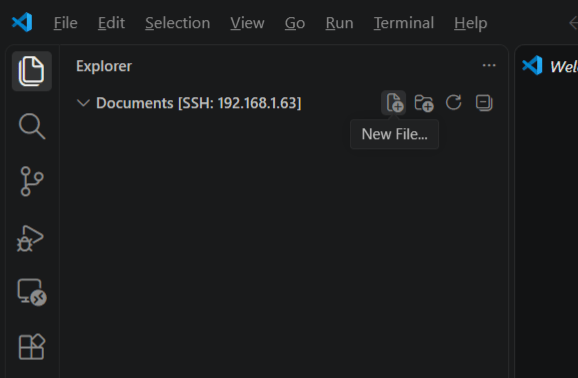
Create New Python File
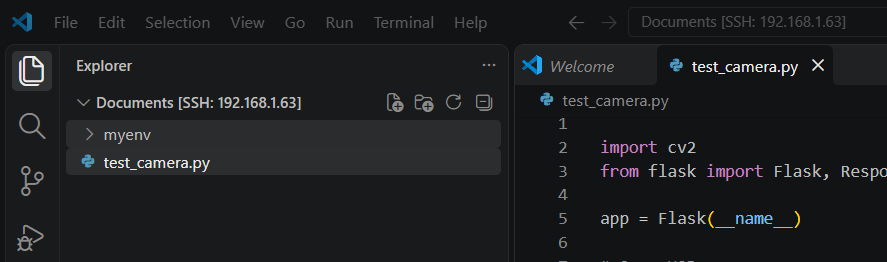
Raspberry Pi Remote Setup
Go to Terminal and Create a virtual environment
- python3 -m venv myenv
- source myenv/bin/activate

Raspberry Pi Remote Setup
import cv2
from flask import Flask, Response

app = Flask(__name__)

# Open USB camera
cap = cv2.VideoCapture(0, cv2.CAP_V4L2)

cap.set(cv2.CAP_PROP_FRAME_WIDTH, 640)
cap.set(cv2.CAP_PROP_FRAME_HEIGHT, 480)

if not cap.isOpened():
    print("Error: Cannot open USB camera!")
    exit()


def generate_frames():
    while True:
        success, frame = cap.read()

        if not success:
            print("Failed to capture frame")
            break

        # Convert frame to JPEG
        ret, buffer = cv2.imencode(".jpg", frame)

        if not ret:
            continue

        frame_bytes = buffer.tobytes()

        yield (
            b"--frame\r\n"
            b"Content-Type: image/jpeg\r\n\r\n"
            + frame_bytes
            + b"\r\n"
        )


@app.route("/")
def index():
    return """
    <html>
    <head>
        <title>Raspberry Pi USB Camera</title>
    </head>
    <body style="text-align:center; font-family:Arial;">
        <h2>Raspberry Pi USB Camera Live Stream</h2>
        <img src="/video_feed" width="640">
    </body>
    </html>
    """


@app.route("/video_feed")
def video_feed():
    return Response(
        generate_frames(),
        mimetype="multipart/x-mixed-replace; boundary=frame"
    )


if __name__ == "__main__":
    app.run(host="0.0.0.0", port=5000, threaded=True)
Test the camera Code using flask
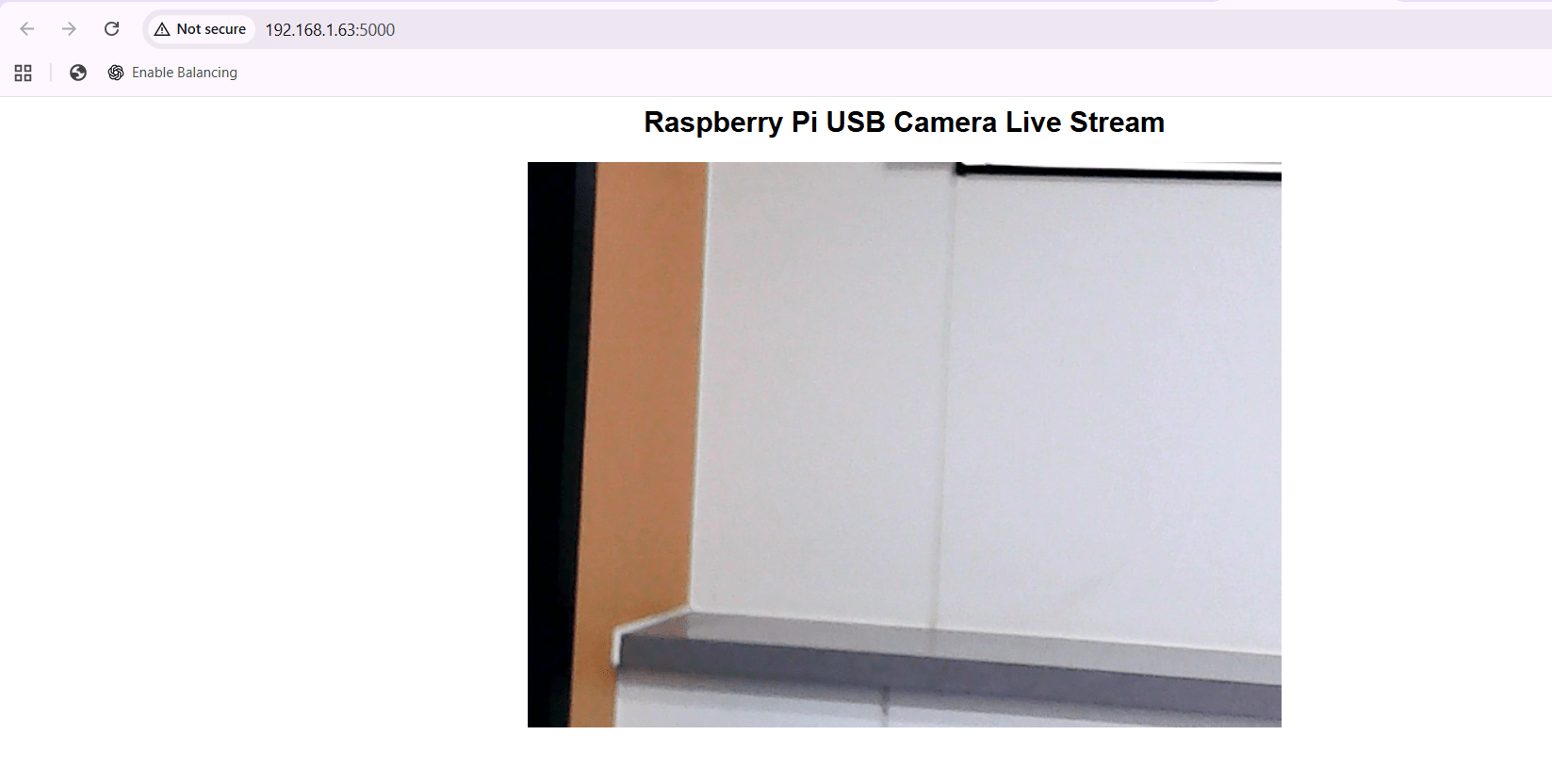
Click on the IP in the terminal; it will link you to a camera web page live stream